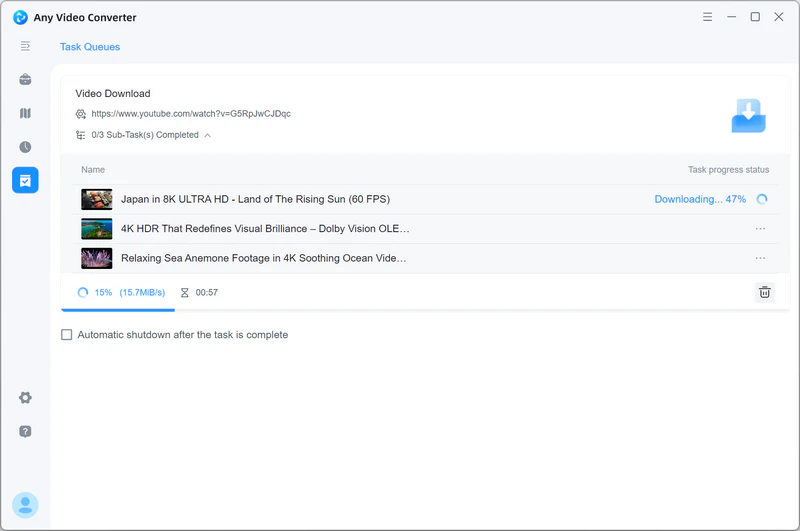
Any Video Converter includes a built-in browser that lets you search for and download videos without copying and pasting URLs. The built-in browser also supports popular sites such as Facebook, X, Vimeo, Twitch, TikTok, Instagram, SoundCloud, and Dailymotion.


How to Search for and Download YouTube Videos
Step 1 Open the Built-in YouTube Browser
There are two ways to open YouTube in Any Video Converter's built-in browser.
Open the Video Download tool in Any Video Converter, hover over Add URL(s), and click  to open YouTube in the built-in browser.
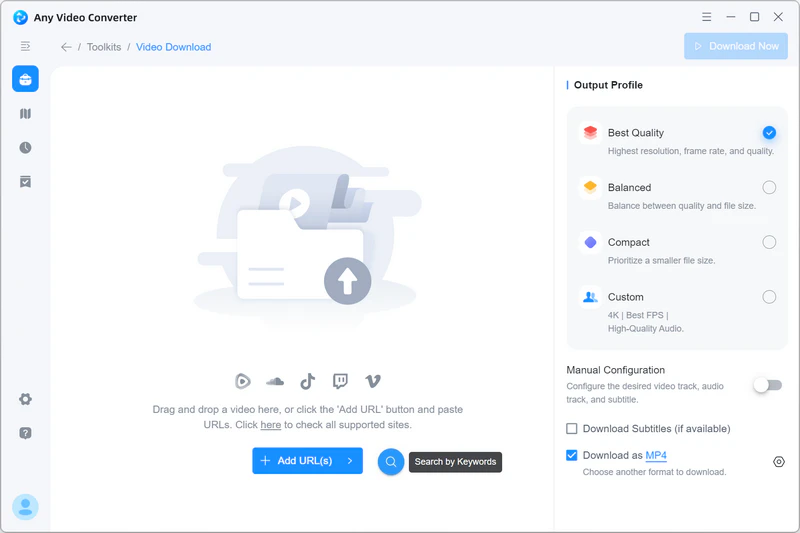
Alternatively, click Add URL(s) and select Search Video.
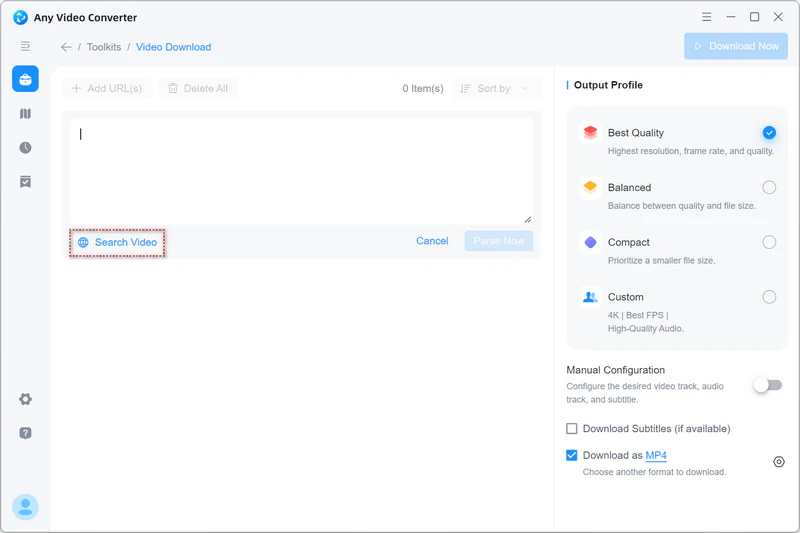
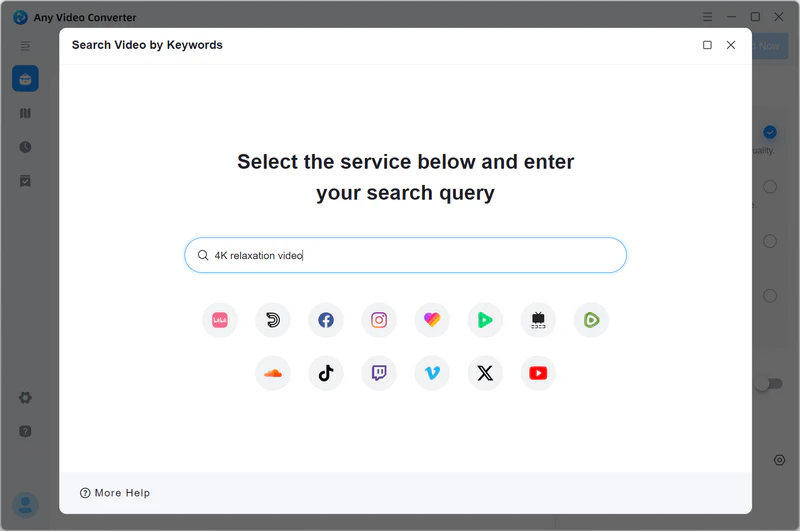
Step 2 Search for a Video by Keywords
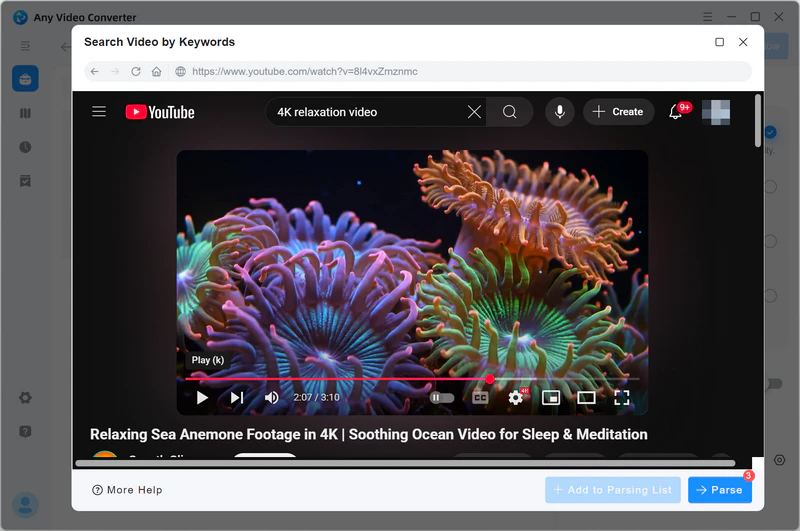
Enter keywords describing the video you want to find, then press Enter to search YouTube.
Step 3 Add Video to the Parsing List
Once you find the video you want, open it and click Parse Now in the lower-right corner to start parsing the URL.
If you want to download multiple videos, click Add to Parsing List instead. Return to the search results and continue adding videos. After adding all the videos you want, click Parse Now to proceed to the parsing screen.
Step 4 Choose a Download Mode and Start Downloading
Select Best Quality, Balanced, Compact, or Custom as the download mode. The Custom mode is available only in Any Video Converter Pro and Ultimate.
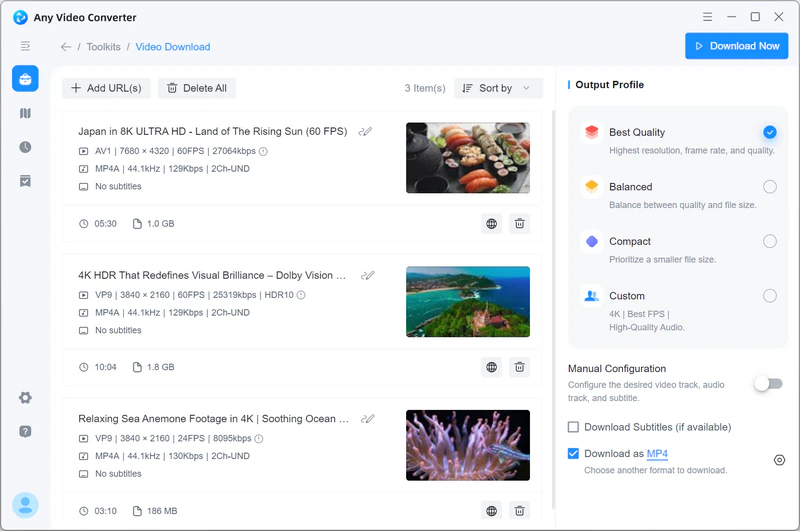
Then click Download Now to start downloading the selected YouTube videos.