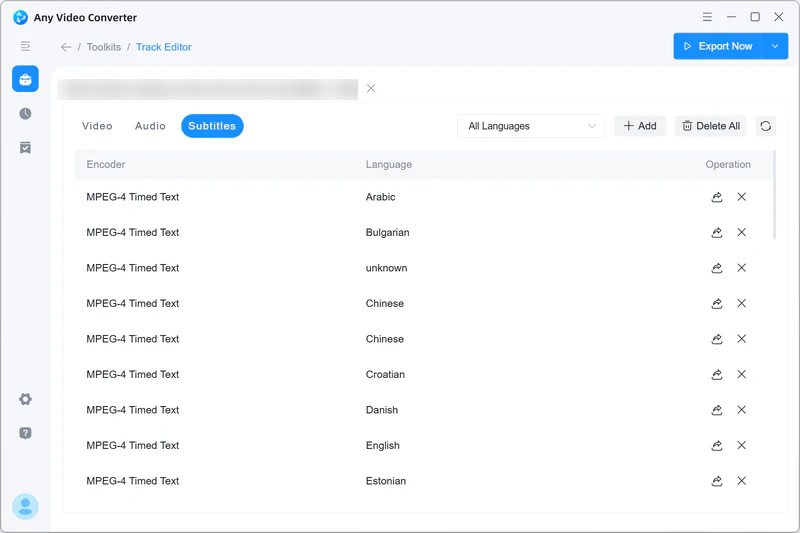
Many videos on YouTube and other sites include one or more subtitle tracks in different languages, making foreign-language movies, TV shows, and other content easier to follow. Any Video Converter lets you select one or more subtitle tracks and download them with the video. You can also use the Track Editor tool to export downloaded subtitle tracks as separate files.


How to Select Subtitles to Download with a Video
Step 1 Add the Video URLs
Open the Video Download tool in Any Video Converter and click Add URL(s).
Video URL of a video that includes subtitles, then paste it into the input box. You can add more URLs to download multiple videos in a batch.
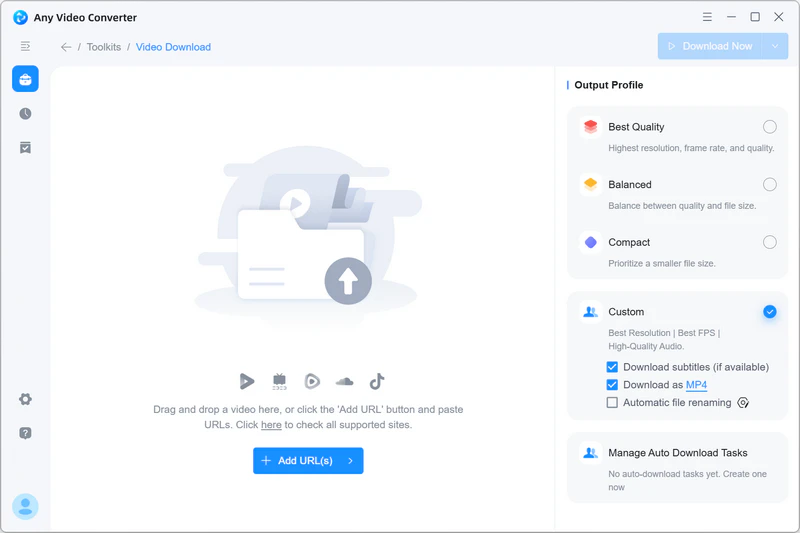
Click Parse Now to analyze the video and retrieve information, such as its title, resolution, codec, bitrate, audio quality, available subtitles, and audio tracks.
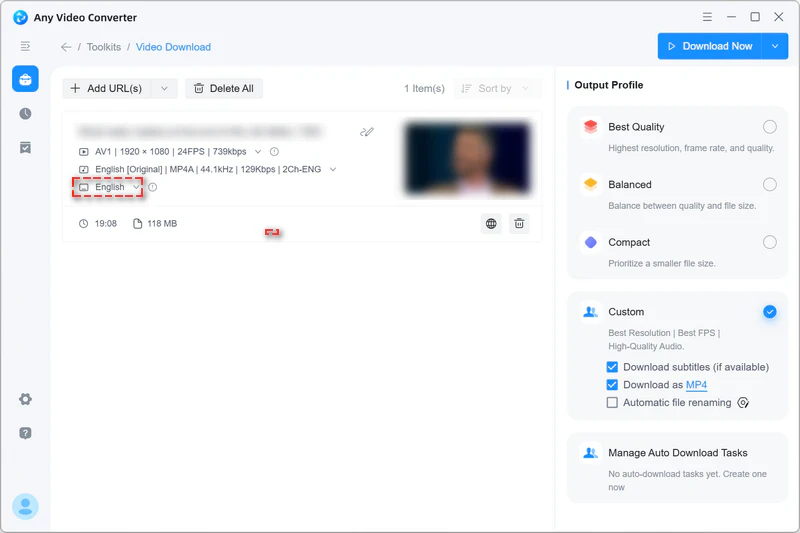
Step 2 Select One or Multiple Subtitles
Click  to display the list of available subtitles, then choose one or more subtitles.
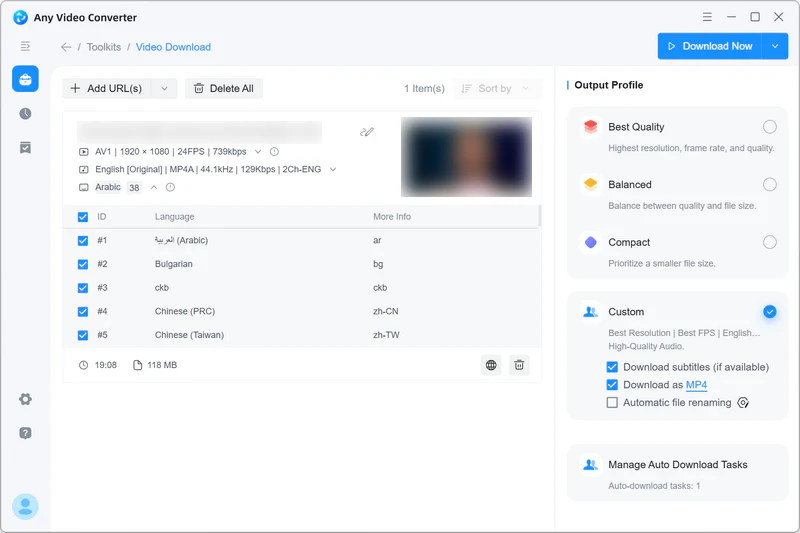
Step 3 Configure the Output Settings and Download
Choose your preferred output settings, such as the resolution, format, video bitrate, and audio quality.
After configuring the settings, click Download Now to start downloading videos with the selected subtitles.
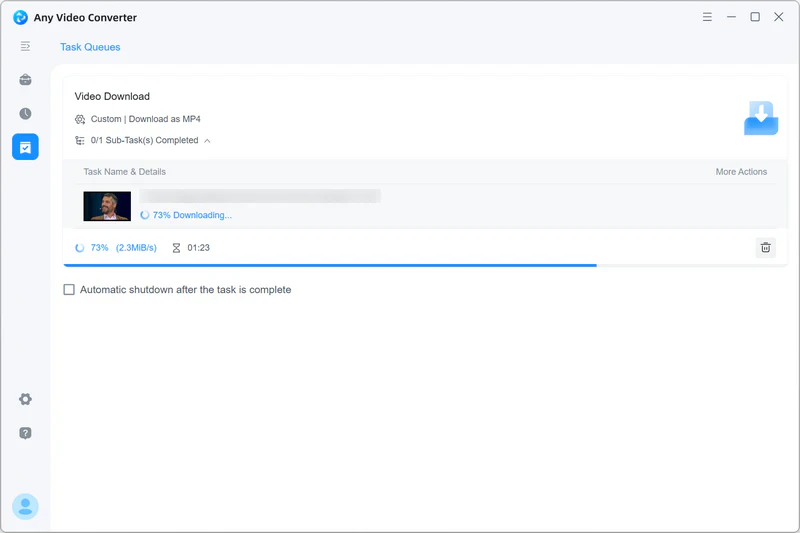
Step 4 Export Subtitles as Separate Files (Optional)
Note: The selected subtitles are saved as subtitle tracks within the downloaded video rather than as separate subtitle files. You can enable, disable, or switch between them in a compatible media player.
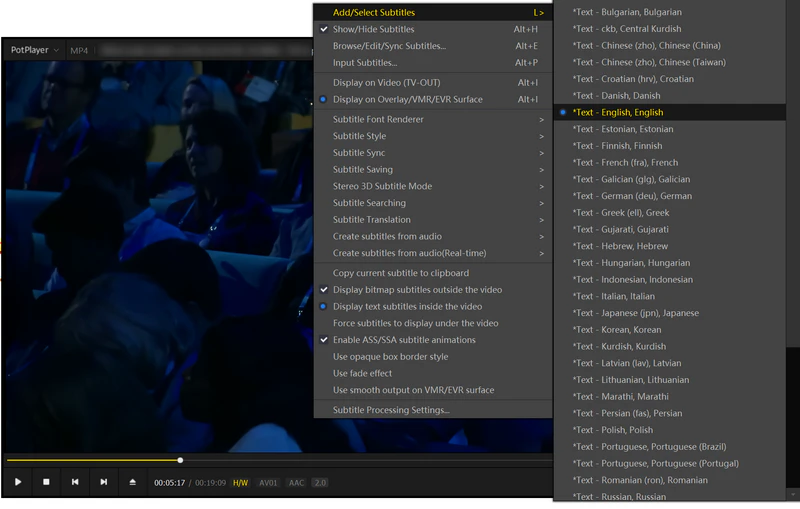
If you want to separate the subtitles from the video, follow the steps below:
Go to the History tab and click  to open the downloaded video in the Track Editor tool.
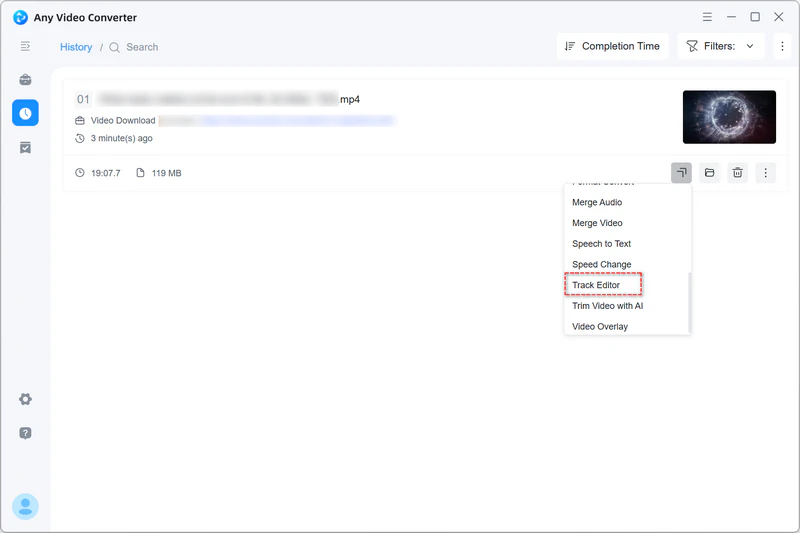
Click the Subtitles tab, then click  to export the subtitle as a separate file.