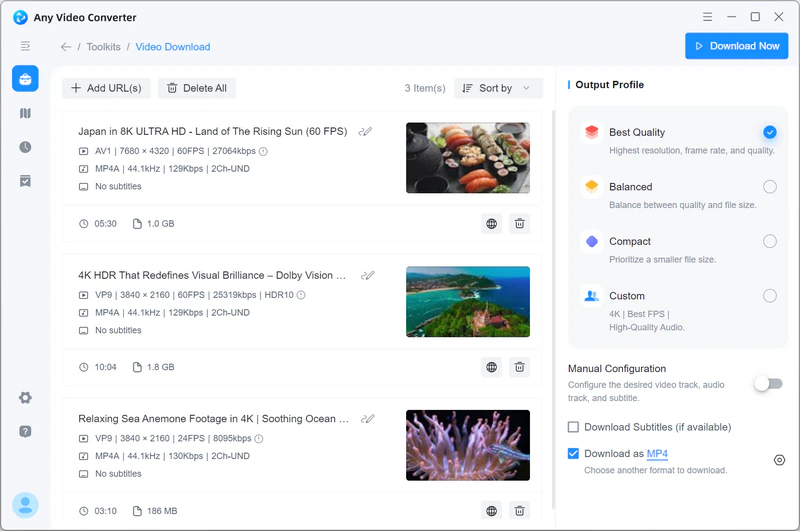
Any Video Converter lets you sign in to supported websites, including YouTube, X, Facebook, Bilibili, and more, through its built-in browser. Signing in may be required to access private, members-only, age-restricted, or other account-protected content. If a video requires you to sign in before it can be parsed, follow the steps below to authorize your account and continue the download.


When a Download Requires You to Sign In
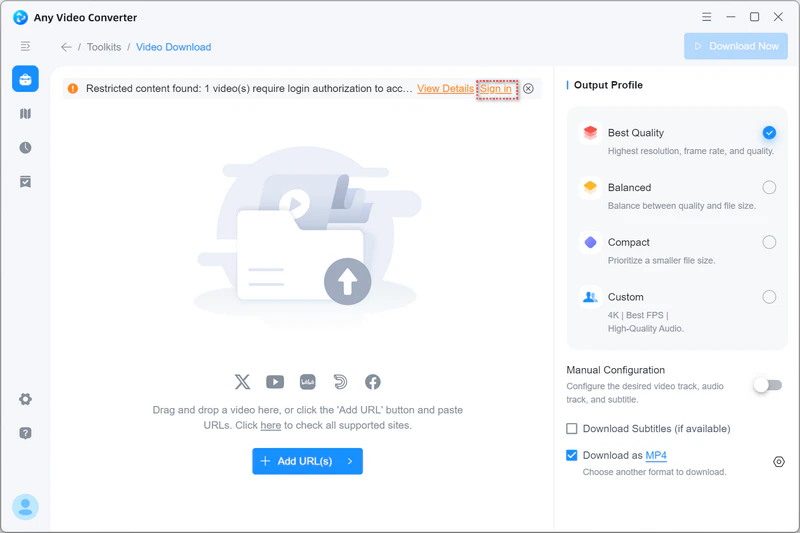
If a video or audio file is private, members-only, or otherwise restricted, Any Video Converter may prompt you to sign in while parsing it. When the prompt shown below appears, click Sign in and sign in to the required account.
Sign In to Your Account in the Built-in Browser
For more reliable downloads, sign in to the required account before adding content to the parsing list. This is especially useful for private, age-restricted, or members-only YouTube videos and content that requires an account on Bilibili, Facebook, X, or another supported website.
Step 1 Open the Built-in Browser
Open the Video Download tool, hover over Add URL(s), and click the magnifier icon to open the built-in browser.
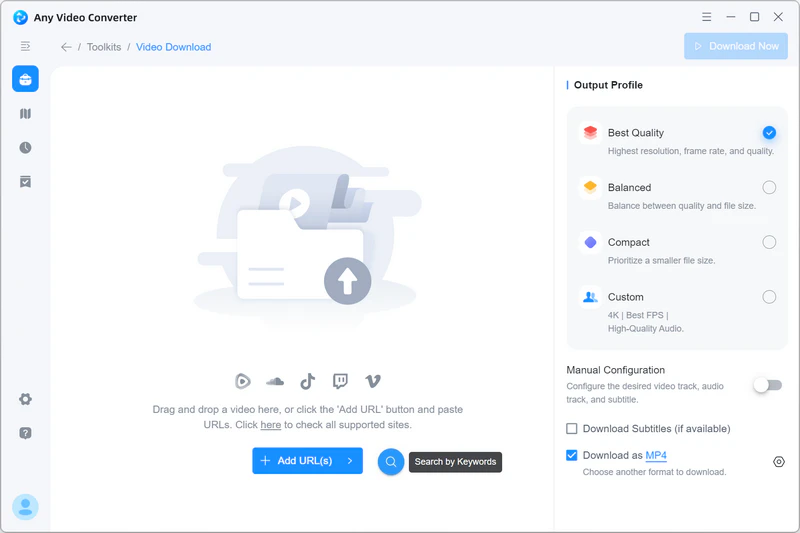
Then select the website you want to access.
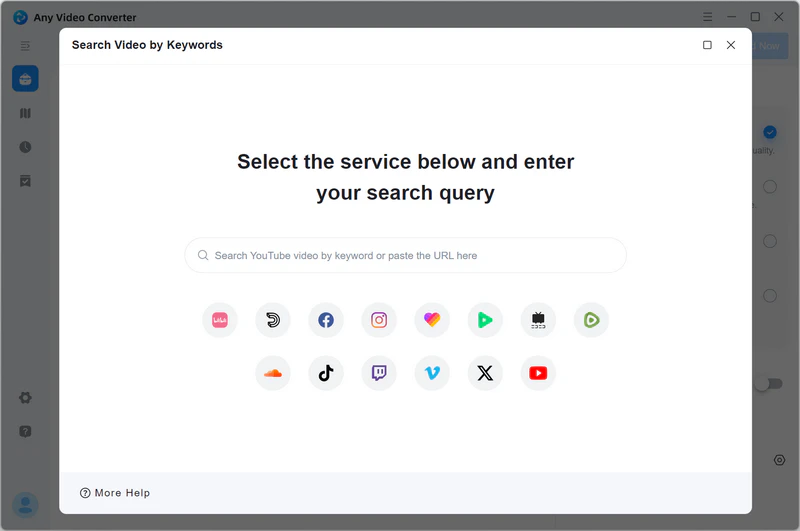
Step 2 Sign in to Your Account
In the built-in browser, open the website's sign-in page and sign in to your account.
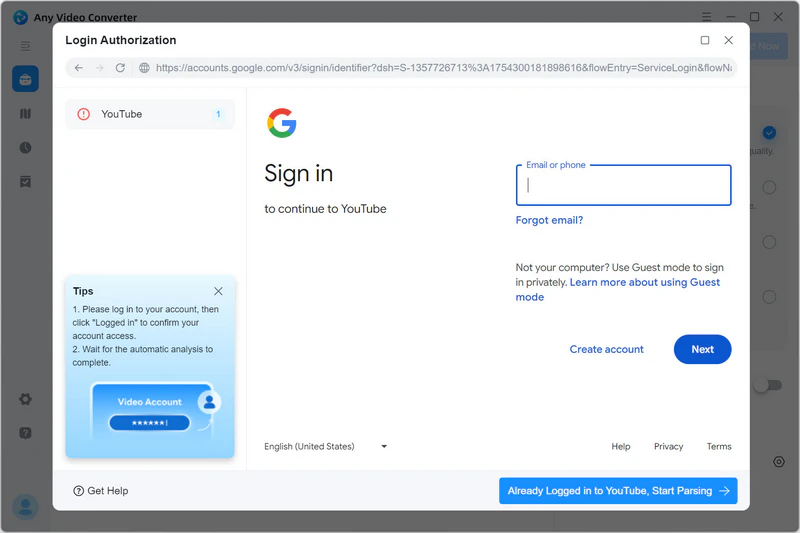
Step 3 Add a Video to the Parsing List
After signing in, find the video or audio you want to download and add it to the parsing list.
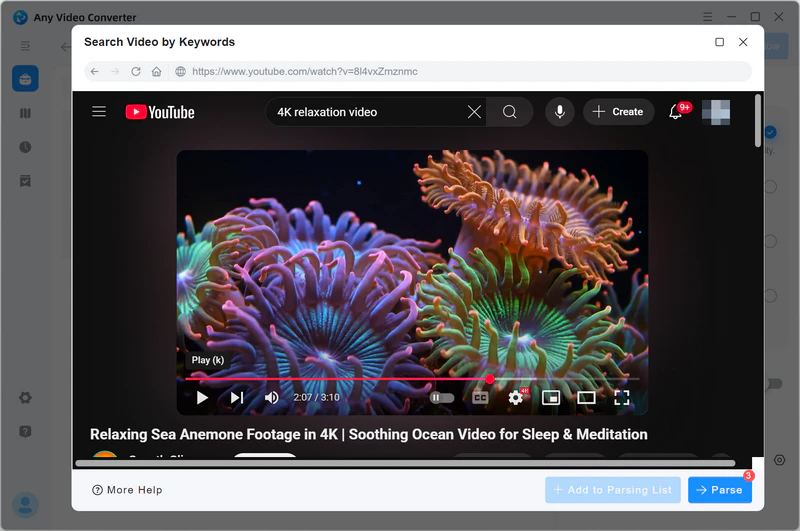
Step 4 Start Parsing and Downloading
Click Parse Now to start analyzing the URLs. After parsing is complete, configure your download settings and click Download Now to start downloading the selected content.