

Downloading videos from YouTube, TVer, Vimeo, Facebook, X, TikTok, Instagram, and 1,000+ sites as MP4 lets you watch them offline on a wide range of devices. Any Video Converter can save high-quality videos as MP4 and MP4 (H.264) for broad device compatibility.
- Broad MP4 and H.264 compatibility. Save downloaded videos as MP4 or encode them with H264 for smooth playback on commonly used media players, TVs, phones, tablets, and other devices.
- High-quality download options. Depending on what is available from the source, you can download videos in resolutions such as 8K, 4K, and 1080p and select available subtitles and audio tracks.
- Flexible output quality and size control. Adjust the resolution, video bitrate, frame rate, and audio quality to prioritize higher quality or reduce the output file size.


How to Download Videos from YouTube as MP4
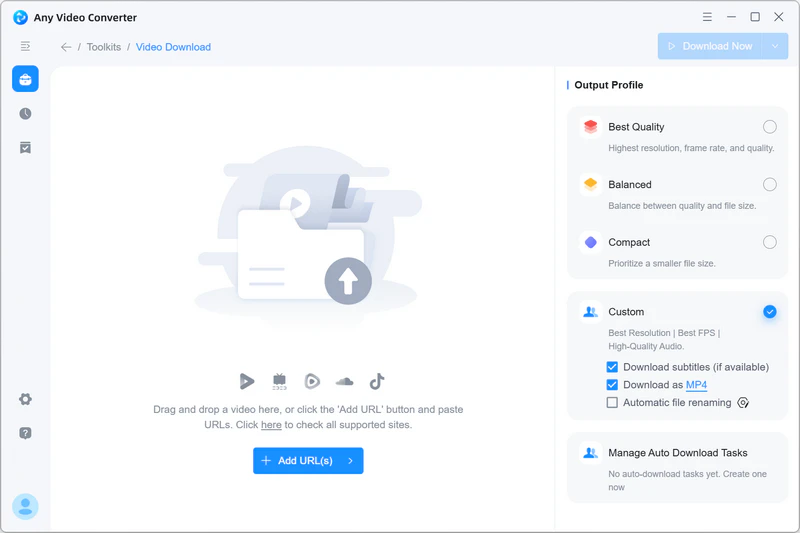
Step 1 Add Video URLs
Launch Any Video Converter, open the Video Download tool, and click Add URL(s).
Copy the URL of the YouTube video you want to download, paste it into the input box, and click Parse Now to start analyzing the link.
Step 2 Choose MP4 as Output Format and Configure Output Settings
In the Output Profile in the right panel, choose Custom to open its settings:
Note: Custom is a premium feature available with Any Video Converter Pro and Ultimate.
Choose MP4 or MP4 H264 as the output format. Selecting MP4 H264 may require the video to be re-encoded, so the processing time is slightly longer than saving it as a standard MP4.
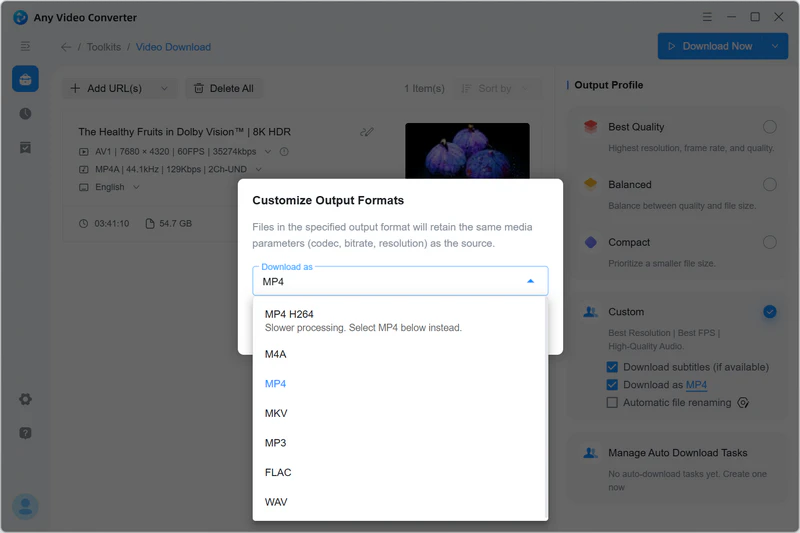
You can also customize the resolution, video bitrate, frame rate, audio quality, subtitles, and audio tracks.
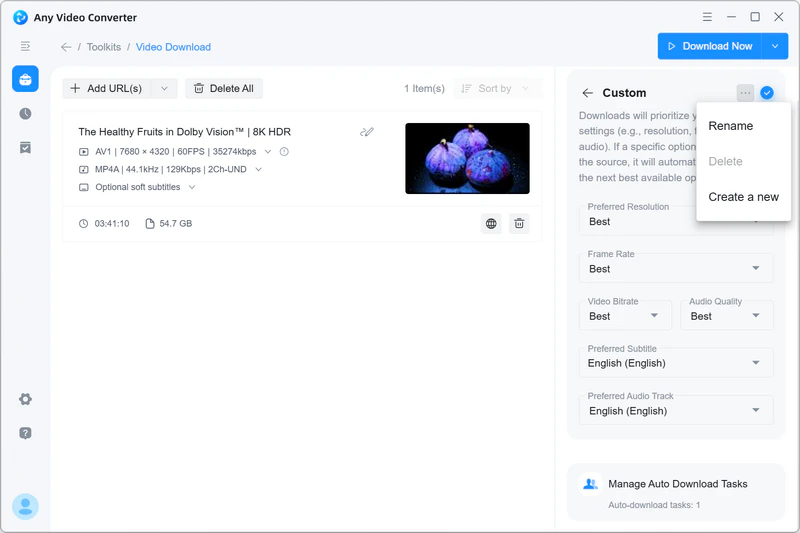
Tips:
- Enable Auto File Renaming to customize the renaming rules and keep your video or music library organized.
- Create an Auto Download task to automatically download new videos from the monitored playlist or channel.
Step 3 Start Downloading YouTube Videos as MP4
Click the Download Now button to start downloading YouTube videos as MP4.
Download and processing times vary depending on your network speed, the video duration, resolution, file size, and whether re-encoding is required. Long videos, high-resolution videos, and MP4 H264 output may take longer to process.
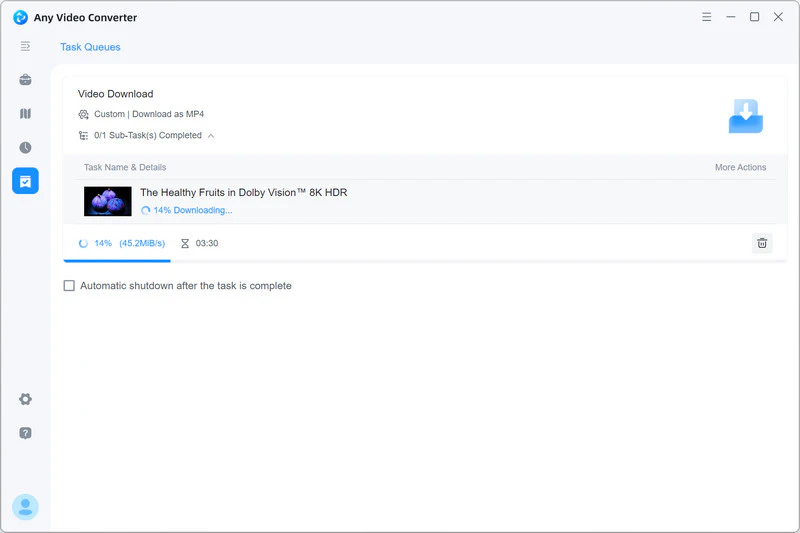
Once you've successfully downloaded the videos, click the History tab for more processing.
Click  to open the file location.
Click  to open the downloaded videos directly in another tool, like Trim Video with AI, Format Convert, DVD Burning, Speech to Text, and more.