Quick Verdict: My Experience with AVCLabs Video Enhancer AI
Whether dealing with old family home videos, low-resolution digital footage, or vintage animation, AVCLabs Video Enhancer AI truly impressed me. It combines a beginner-friendly workflow with a suite of AI-powered tools, making it far more than just a simple video enhancer and upscaler. I must commend its Anime model, which perfectly preserves clean lines and pure colours. And the Face Enhancement function and Denoise model also perform exceptionally well, significantly improving visual quality while avoiding the unnatural look often caused by over-processing.
Although processing can take longer on lower-end GPUs, and severely degraded footage may require several preview runs to find the right settings, AVCLabs Video Enhancer AI can still deliver meaningful improvements across different types of videos with the right model selection and parameter adjustments.
👉 Learn More: Increase Video Resolution from 480p, 720p to 1080p, 4K Even 8K without Losing Quality
Getting Started: Is AVCLabs Video Enhancer AI Easy to Use?
Before diving into video quality tests, I wanted to see how easy AVCLabs Video Enhancer AI was to use from a first-time user's perspective. After all, if the workflow is overly complicated, even the most powerful artificial intelligence models can be frustrating, such as Topaz Video AI.
AVCLabs Video Enhancer AI is very straightforward to use, featuring a clean and intuitive interface that makes it easy to get started. The workflow is as follows: import the video, select an AI model, adjust the output settings, preview the results, and finally export the enhanced video.
Key Features of AVCLabs Video Enhancer AI
- Enhance video clarity and upscale resolution to 4K or 8K
- Reduce noise and improve blurry facial details
- Colorize footage and convert SDR videos to HDR
- Smooth motion and stabilize shaky footage
- Blur specific areas in the enhanced video to protect privacy
A Simple Workflow from Import to Export
The workflow consists of 4 easy steps:
1. Import your footage. Click on the workspace to upload in Video Enhancer module or directly drag the source video into the AVCLabs Video Enhancer AI. You can also add multiple videos at once for batch processing, which is highly efficient when working with several clips.
2. Select an AI model and output resolution. Choose the enhancement model best suited to your footage and set your desired output resolution (e.g., 1080p or 4K). If you’re unsure which model to choose, try starting with the Presets or the Standard model.
3. Real-time preview. Use the "Preview" function to view the contrast effect of the current settings. If the effect appears too soft or overly sharpened, you can try changing the model or adjusting the relevant parameters.
4. Configure export options and begin processing. Set the output format, encoder, bitrate and save path, and then you can begin the export. You can check the processing progress at any time and obtain the final video file after the task is completed.
Useful Tips for First-Time User and Setup
Make the most of the free trial features
Its trial version offers all the functions. But all exported content will have a watermark, and the duration limit for each exported clip is 30 seconds, but there is no quantity limit.
You can use these 30-second clips to test the performance of different models and evaluate whether the results meet your expectations before deciding to make a purchase.
Selecting the model based on video content
For general video enhancement, choosing the Standard model is a good starting point. If your content has specific requirements, you can try models like Ultra, Anime, Denoise, or Multi-frame.
Preview before processing the entire video
Through preview, you can confirm whether the selected model can achieve the expected effect and avoid conducting time-consuming export without knowing the final presentation.
Avoid simultaneously enabling all AI functions
Enabling multiple AI functions will significantly increase the rendering time and also have certain requirements for the hardware. It is recommended that you first enable the truly necessary enhancement functions. If later you find that other functions can indeed improve the effect, then add them as appropriate.
Check hardware configuration and storage space
AI enhanced processing has high requirements for hardware, especially when converting long videos to 4K or higher resolutions.
Make sure your graphics card driver is updated to the latest version to achieve the best stability and rendering speed. Using a compatible graphics card can accelerate the processing process. Additionally, sufficient memory and disk space are also crucial.
3. Testing AVCLabs Video Enhancer AI: Features, Models & Results
In order to evaluate the actual performance of AVCLabs Video Enhancer AI, I conducted a series of tests on its core model and dedicated tools. From resolution enhancement to video blurring and video stabilization, I focused on the intuitive improvements brought about by each function and explored the optimal parameter settings for the test clips I used.
3.1 Standard vs. Ultra: Which Model Should You Choose?
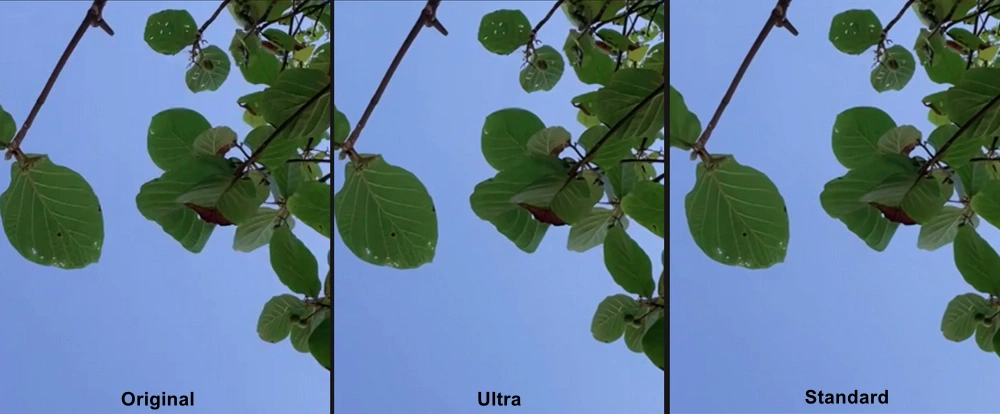
To observe how these two primary models perform in a real-world scenario, I imported a short clip of natural scenery and zoomed in to 200% in the preview window. To ensure a fair comparison, I set the Detail Balance parameter to 50 for both models.
The Standard model focuses on a smooth, refined look, producing clean and natural-looking footage. The edges of leaves and the outlines of branches become clearer, and the veins on larger leaves are easier to distinguish. The overall video quality has been significantly improved, and the video does not appear overly sharp.
The Ultra model, on the other hand, is dedicated to detail presentation. The clarity of the same frame is significantly enhanced. The veins and edges of leaves are further emphasized, giving the vegetation a stronger outline.
Our Verdict:
The advantage of Standard lies in its ability to bring about intuitive picture quality improvement. If you just want to make ordinary video materials look clearer, it can fully meet your needs. If you want to further highlight fine textures, then Ultra is indeed a worthy choice to try.
3.2 Multi-Frame Models: Enhancing Moving Footage
Single-frame processing sometimes leads to inconsistent details between frames, and in scenes with rapid movement, this may cause screen flickering.
I tested several video clips containing the following content using the Multi-Frame models of AVCLabs Video Enhancer AI: sports event scenes and videos shot with handheld smartphones. Compared with single-frame enhancement, the effects presented by the multi-frame models are significantly more stable. Objects maintain better consistency between different frames, and fine details are less prone to flickering.
Our Verdict:
When dealing with action scenes, outdoor footage, or any videos that require maintaining consistent details throughout a dynamic playback, I recommend using the multi-frame model. Of course, this does entail a certain amount of time investment.
3.3 Anime Enhancement: Improving Lines and Details
The Anime model is one of the functions that I am most interested in testing. Anime usually features clear lines, large areas of color, and stylized backgrounds. If a general AI model is used for processing, it sometimes appears less natural.
During the test, the enhanced video showed more distinct outlines in the girl's hair, facial features, purple hooded shirt, and the edges of the roof. The clouds and the distant cityscape still maintained a soft and colorful texture.
I also tried different Detail Balance settings. A lower value (5) results in a softer, more similar-to-the-original effect, while a higher value (100) will more strongly emphasize the line contours and background details. In my test materials, the medium setting achieved the best balance between enhancing clarity and preserving the original style.
Our Verdict:
No matter what type of animation you are working with, use the dedicated anime models, which can maintain the neatness of the lines and the purity of the colors. Additionally, keeping the Detail Balance at around 50 can achieve a good improvement in video quality. Only when the video quality is extremely blurry, do you need to manually adjust the Detail Balance to a higher level to obtain clarity.
3.4 Face Enhancement and Denoise: Handling Specific Video Issues
Although the Standard and Ultra models focus on enhancing the overall video quality, the Face Enhancement and Denoise functions are specifically designed to address specific quality issues.
When testing the Face Enhancement feature, I set the Detail Balance parameter to 50 and used an old family video clip. Compared to the original footage, in the enhanced video, the eyes, eyebrows, and mouth became much clearer and more distinct. The facial contours also became more pronounced, making the face easier to recognize.
The Denoise model is also very practical. This model effectively reduces the noise in the video, especially in the flat background areas and the darker parts. At the same time, important details such as the fur texture of the tiger and facial features have been well preserved and have not been smoothed out due to the noise reduction process.
Our Verdict:
What I am satisfied with about the Face Enhancement feature is that the improvement is significant and does not overly alter the overall visual effect of the video. For some old videos where the face is not clear enough, this feature is definitely worth trying. Noise reduction can clean up the noise while retaining the maximum amount of video details. In my tests, both of these features have brought solid and practical improvements, and the performance fully meets expectations.
3.5 AI Colorization: Bringing Black-and-White Footage to Life
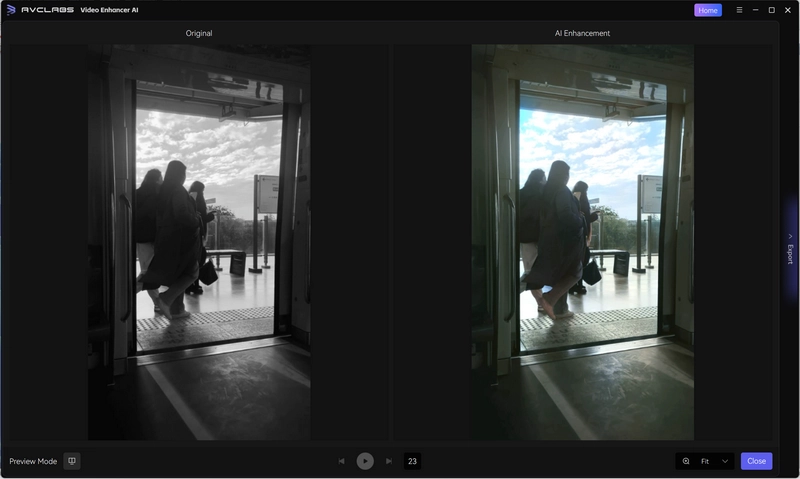
The Colorize function of AVCLabs Video Enhancer AI offers three models, Soft, Bright, and Premium. My focus is not merely on whether the colors are bright enough, but on whether the color presentation is natural and in harmony with the original scene.
For videos containing dynamic content, the Premium model is indeed worth trying. This model can analyze 16 frames simultaneously, which helps to reduce color flickering and inconsistencies between frames.
Our Verdict:
Test the Soft, Bright, and Premium models separately on the same small segment of the video. Pay special attention to skin tones and background colors, and watch the segment continuously to observe if the colors remain stable.
3.6 Video Blur: Blur Faces and Other Sensitive Areas
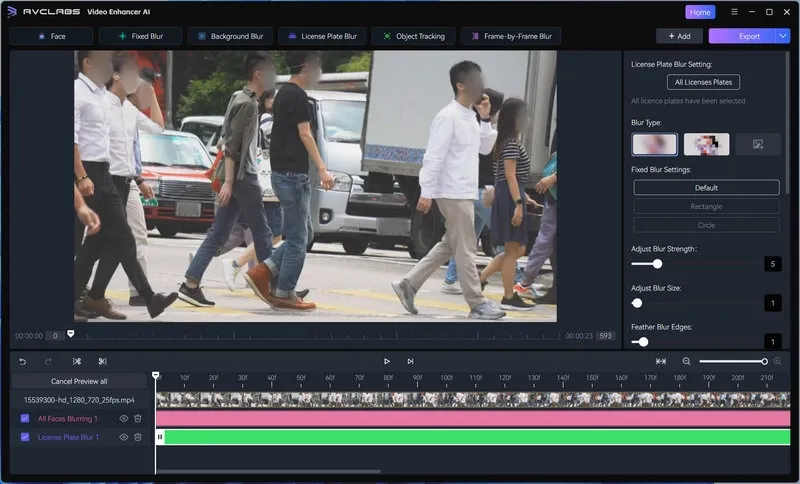
Although AVCLabs Video Enhancer AI is renowned for its video restoration capabilities, it also incorporates a dedicated Video Blur function to meet the actual privacy protection requirements. It includes features such as blur faces, blur fixed objects, blur backgrounds, blur license plates, as well as tools for tracking and blurring objects.
Our Verdict:
AVCLabs Video Enhancer AI is extremely suitable for processing footage shot in public places, driving record videos, educational videos, as well as those segments that need to have identifiable information concealed when shared. One thing I particularly like about this approach is that I can complete all privacy protection-related editing tasks within the same application, without having to switch to other software for each task.
3.7 Video Stabilization: Smoother Viewing Experience
Even if the video quality is good, the shaky footage can still make people feel uncomfortable. Therefore, I wanted to see if AVCLabs could enhance the viewing comfort without introducing obvious distortions.
In most cases, this feature successfully reduced minor camera shake, making the movement of the picture smoother. The footage shot while walking looks more professional, and the handheld videos taken casually also become easier to watch.
Our Verdict:
AVCLabs achieved a very balanced effect while reducing unnecessary shaking. Although "video stabilization" is not the core feature of this software, it is indeed a very valuable function for smartphone videos and travel footage.
4. What I Like About AVCLabs Video Enhancer AI — and What Could Be Better
After testing all the models and functions of AVCLabs Video Enhancer AI, I gained a clearer understanding of its performance, and at the same time identified areas where it still has room for improvement.
4.1 What I Like
Powerful and easy to use. The workflow is simple and clear. Most enhancement operations can be completed with just a few clicks, making it very user-friendly for both creators and non-professional users.
For old videos or those with low quality, the enhancement effect is excellent. In my tests, both the Standard and Ultra models have brought significant improvements in video quality.
Exceptional specialized AI Anime model. The Anime model excels at sharpening character outlines, facial features, and background details while preserving the original animation style. It consistently outperforms other enhancement models when processing anime content.
Outstanding facial restoration and noise reduction. The Facial Enhancement feature significantly improves facial clarity and makes it easier to identify. The Noise Reduction model effectively removes excess graininess and compressed artifacts while preserving key details.
An all-in-one video processing tool. The functions such as colorization, video blur, and video stabilization make AVCLabs Video Enhancer AI a comprehensive video processing tool, perfectly suited for daily video production needs.
The preview feature saves time. You can compare the processed results before exporting, which makes selecting the right model easier and helps avoid unnecessary rendering.
4.2 What Could Be Better
❌Finding the best model and settings requires experimentation. Different models and parameter configurations will yield different results. You may need to run several preview tests to determine the most suitable settings for a specific video.
❌Results depend on the quality of the source video. AI enhancement technology can improve the clarity and detail of the video. However, for severely blurry videos, even if they are directly upscaled to 4K resolution, it may not achieve satisfactory results.
❌High hardware requirements and long rendering times. If the hardware configuration is low, converting a long video to 4K or 8K resolution may require several hours of processing time. It is recommended to equip a suitable dedicated GPU to improve the processing speed.
Part 5: FAQ About AVCLabs Video Enhancer AI
Is AVCLabs Video Enhancer AI Free?
AVCLabs Video Enhancer AI offers a free trial version. With the trial version, you can test all the AI models and functions to assess how they perform on your footage. However, exported videos will feature a watermark, and each video clip is limited to a maximum length of 30 seconds.
Is AVCLabs Video Enhancer AI suitable for beginners?
Yes. One of the biggest advantages of AVCLabs Video Enhancer AI is its beginner-friendly workflow. Importing videos, selecting AI models, previewing results, and exporting enhanced footage can all be completed within a few clicks. Even users without video editing experience should be able to get started quickly.
 [User Guide] Learn how to use AVCLabs Video Enhancer AI
What are the system requirements for running AVCLabs Video Enhancer AI?
AVCLabs Video Enhancer AI supports Windows 10/11 (64-bit) and macOS 12 or later on Apple Silicon Macs. The minimum requirements for Windows include a compatible CPU, 4GB of RAM, and 4GB of GPU memory, while Apple Silicon Macs require at least 8GB of RAM. Both platforms need at least 20GB of free storage.
Click to view the system and hardware requirements for AVCLabs Video Enhancer AI
Can AVCLabs Video Enhancer AI really improve old videos?
Yes. It can improve the clarity of old videos, enhance facial details, and reduce video noise. The effects of AI models such as Standard, Ultra, Face Enhancement and Noise Reduction are particularly noticeable.
How does AVCLabs Video Enhancer AI compare to Topaz Video AI? Which one should I choose?
Both offer high-quality upscaling, but they cater to different workflows:
- Choose AVCLabs if you prefer an intuitive, user-friendly interface that delivers impressive results quickly, along with standout dedicated models for anime and facial restoration.
- Choose Topaz Video AI if you are an advanced video professional who requires deep, highly technical manual control over complex models and custom parameters.
In-Depth Review in 2026: Topaz Video Enhance AI and Alternatives
Conclusion: Would I Use AVCLabs Video Enhancer AI Again?
AVCLabs Video Enhancer AI is definitely my top choice for video restoration and image quality improvement in the future. I highly appreciate that it offers multiple AI models for different types of video materials instead of applying the same processing method to all videos.
Overall, I would recommend AVCLabs Video Enhancer AI to content creators, anime enthusiasts, and users who want to improve old videos or low-quality videos without having to deal with complicated workflow. Due to the fact that processing speed and final results are affected by the original materials and hardware configuration, it is recommended that everyone conduct tests using the free trial version first.

Besty Smith | Content Writer
Besty Smith is a talented and insightful content creator with a keen interest and passion for software programs. She focuses on in-depth research and hands-on experience with various types of software, providing readers with in-depth and inspiring content through precise writing. With her keen insight into the software industry, Besty is committed to helping readers keep abreast of the latest industry trends so that they can stay competitive in the digital age.